Pair in 5 quick steps
- 1
Install FireCast Remote
Download FireCast Remote from the App Store (iOS) or Google Play (Android). It's a free download.
- 2
Join the same Wi-Fi as your Fire TV
The phone and the Fire TV must be on the same Wi-Fi network. Pairing happens locally — no cloud, no Amazon login required.
- 3
Open the app and pick your device
FireCast Remote auto-discovers every Fire TV on your network. Tap the device you want to control.
- 4
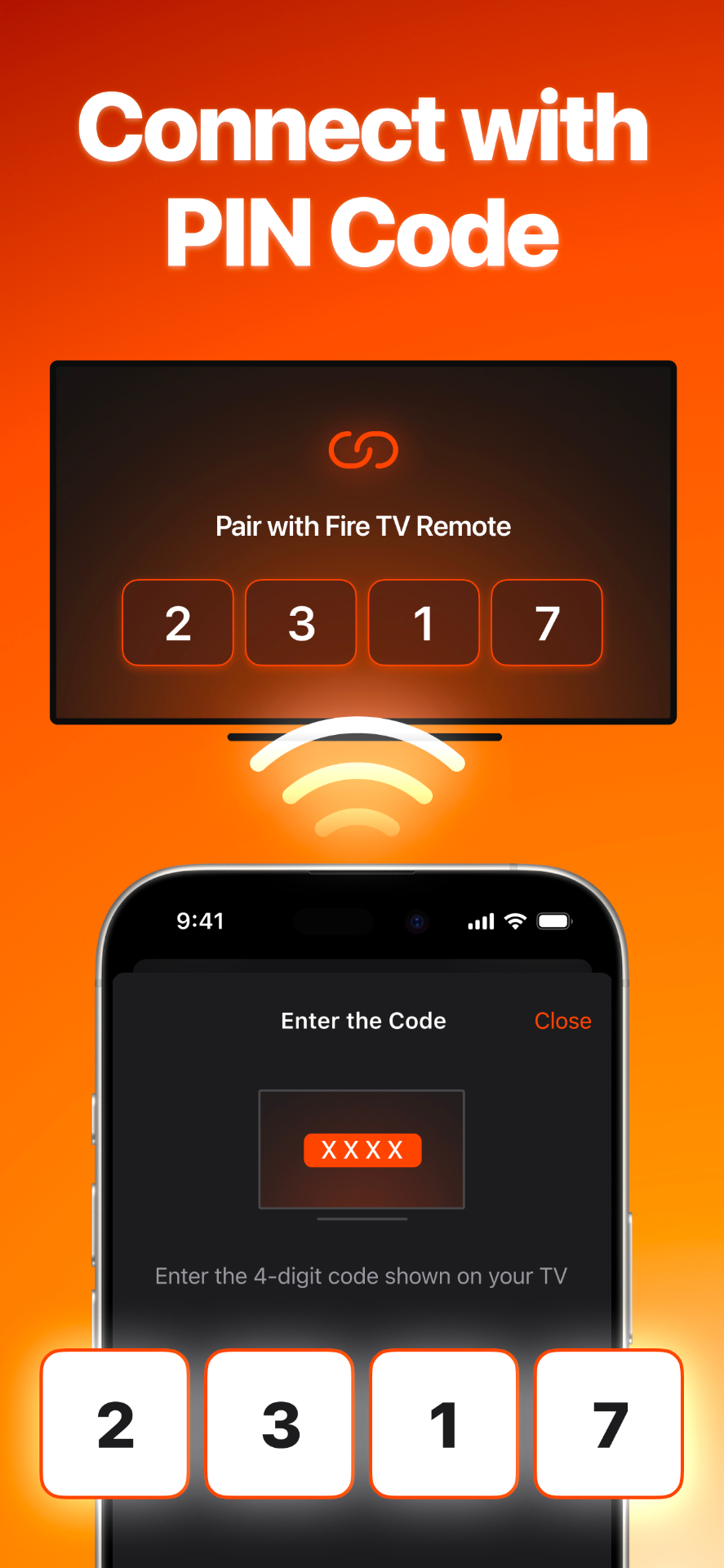
Enter the 4-digit PIN shown on the TV
Your Fire TV displays a 4-digit PIN. Type it into the app — that's it, you're paired.
- 5
Use D-pad, voice, keyboard, or trackpad
Switch input modes from the bottom bar: classic D-pad, swipe trackpad for browsing, voice search, and a software keyboard for fast typing on Amazon, Netflix, and YouTube.
Why use a phone as the Fire TV remote?
- •Lost or broken Fire TV remote — replace it instantly without a $30 Amazon order.
- •Typing on the on-screen keyboard is painfully slow. The phone keyboard fixes that.
- •Trackpad mode for the Fire TV web browser (Silk) and sideloaded apps.
- •Always have a backup — no Bluetooth pairing dance, no batteries to replace.
Pairing not working? Try this
- Same Wi-Fi network. Phone and Fire TV must share the same SSID. Guest networks and isolated IoT networks block discovery.
- Disable VPN. A VPN on the phone routes traffic off your LAN and the Fire TV becomes invisible. Turn it off, pair, then re-enable.
- Enable Local Network access. On iOS, go to Settings → FireCast Remote → Local Network and toggle it on. Without it the app can't see devices.
- Restart the Fire TV. Unplug the Stick for 60 seconds, plug it back in. This resets the discovery service.
- Router AP isolation. Some mesh routers block device-to-device traffic by default. Disable "AP isolation" or "client isolation" in the router admin.
Frequently asked questions
Is the Fire TV remote app from Amazon still available?+
Amazon discontinued its official Fire TV app on iOS and Android in 2024. FireCast Remote is a maintained third-party replacement built specifically to fill that gap.
Do I need Bluetooth to pair the remote app?+
No. FireCast Remote uses your home Wi-Fi, not Bluetooth. That's why it works even when the physical remote is missing or broken.
What if no Fire TV shows up in the app?+
The phone is on a different Wi-Fi network — usually a guest network or 5 GHz vs 2.4 GHz on a mesh router. Connect both devices to the same SSID, then pull-to-refresh in the app.
Can I pair the app without entering a PIN?+
No — the PIN proves you have physical access to the TV. This is a Fire TV security requirement and protects your device from neighbors on the same Wi-Fi.
Will the remote app work over cellular or away from home?+
No. Fire TV's pairing protocol is LAN-only. You must be on the same Wi-Fi network as the Fire TV.
Can I use the app at the same time as the physical Fire TV remote?+
Yes. Fire TV accepts input from multiple remotes simultaneously — physical Bluetooth remote, phone app, and Alexa-enabled Echo devices can all control the same TV.
Does the app support voice search?+
Yes. Hold the microphone button to search across Prime Video, Netflix, YouTube, and every other installed app — the same as the physical Voice Remote.
Does the app work on Apple Watch?+
Yes. FireCast Remote includes an Apple Watch companion app with a D-pad, play/pause, and volume — useful when your phone is across the room.